> ## Documentation Index
> Fetch the complete documentation index at: https://docs.getpimento.com/llms.txt
> Use this file to discover all available pages before exploring further.
# Steps
1. From Pimento homepage, click **Workflows** from the left hand menu.
2. From the Workflows page, click **+ Create workflow**
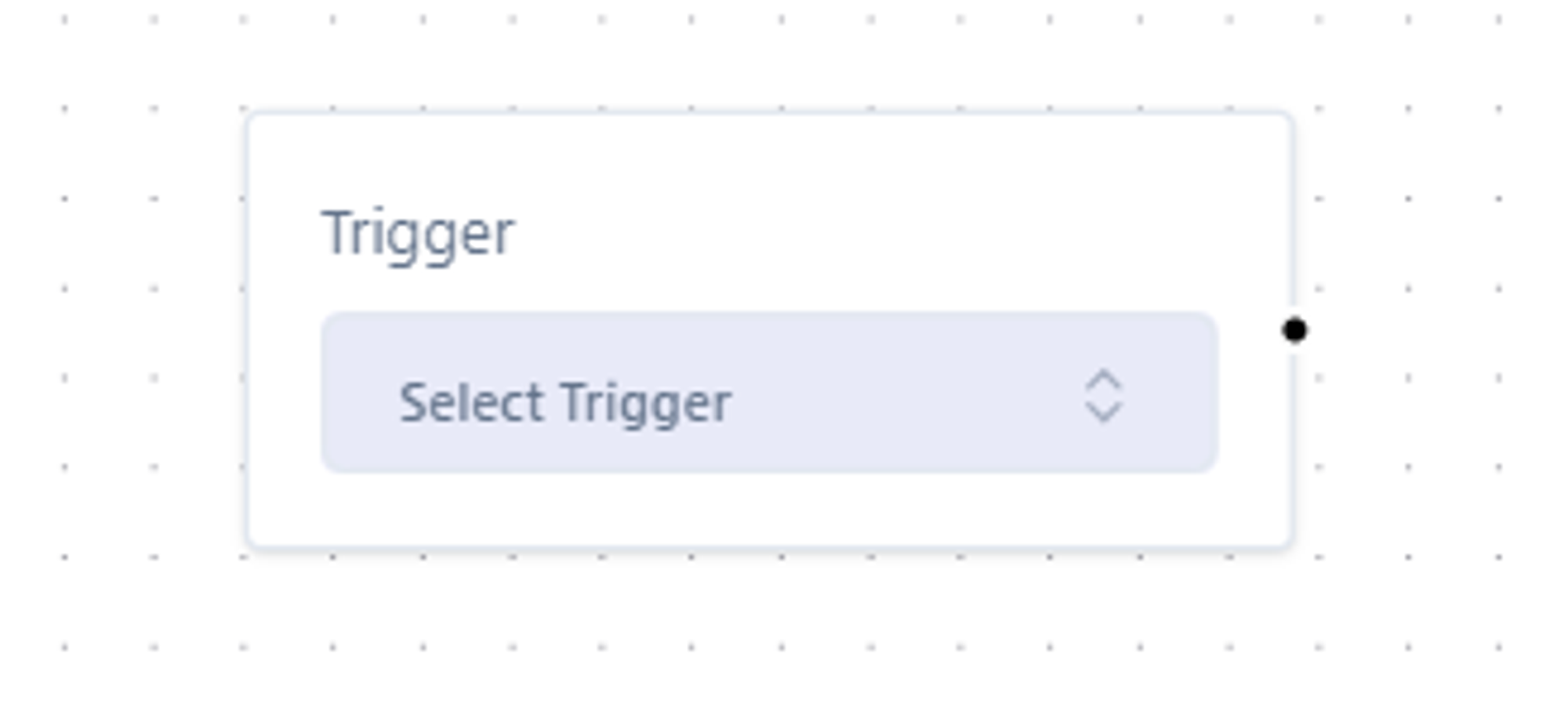
3. Select your trigger from the drop down, a trigger starts the workflow.
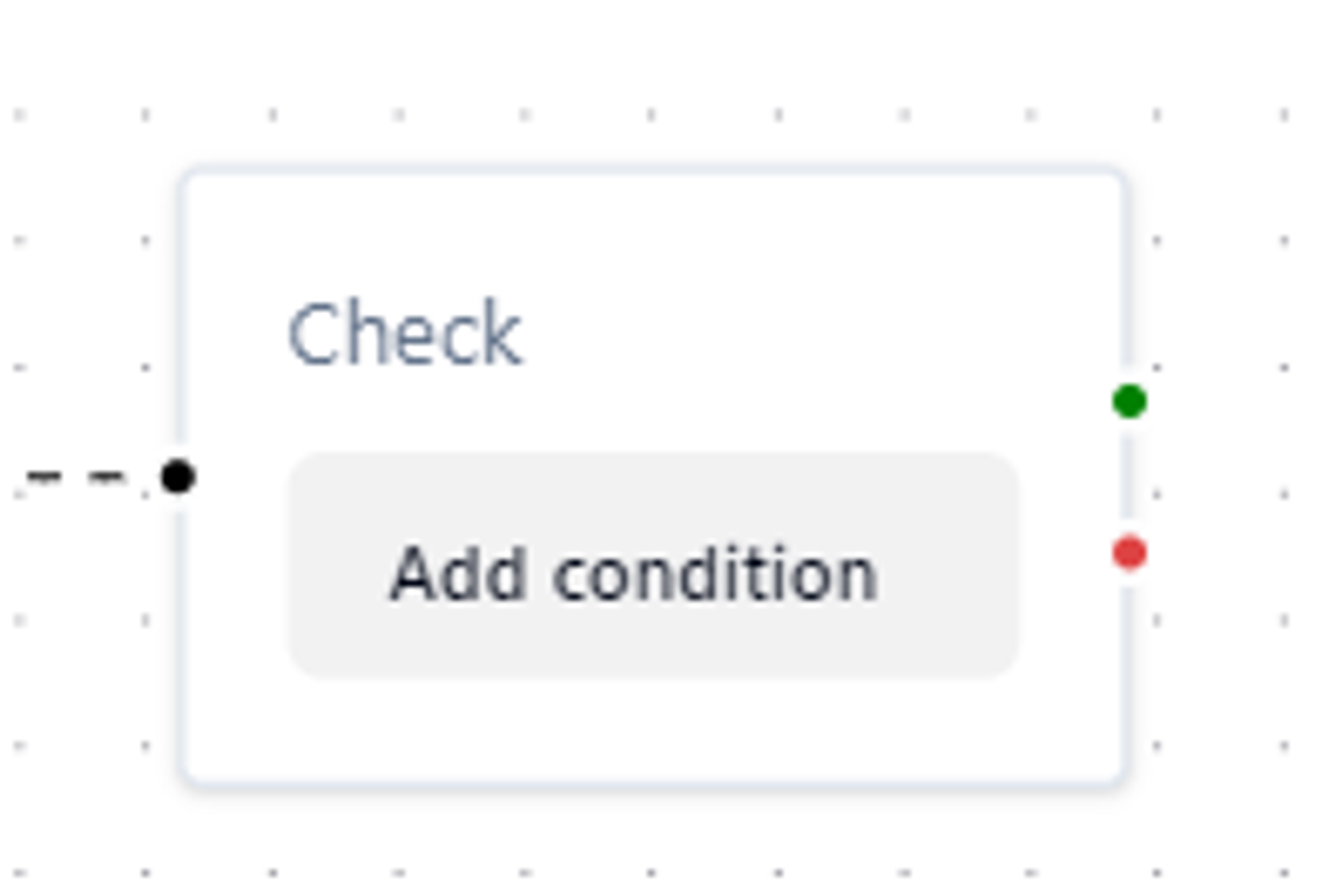
 1. Click **add check** to set up your conditions.
2. Click **add condition.** The conditions are what must be checked and met for your workflow to run.
1. Click **add check** to set up your conditions.
2. Click **add condition.** The conditions are what must be checked and met for your workflow to run.
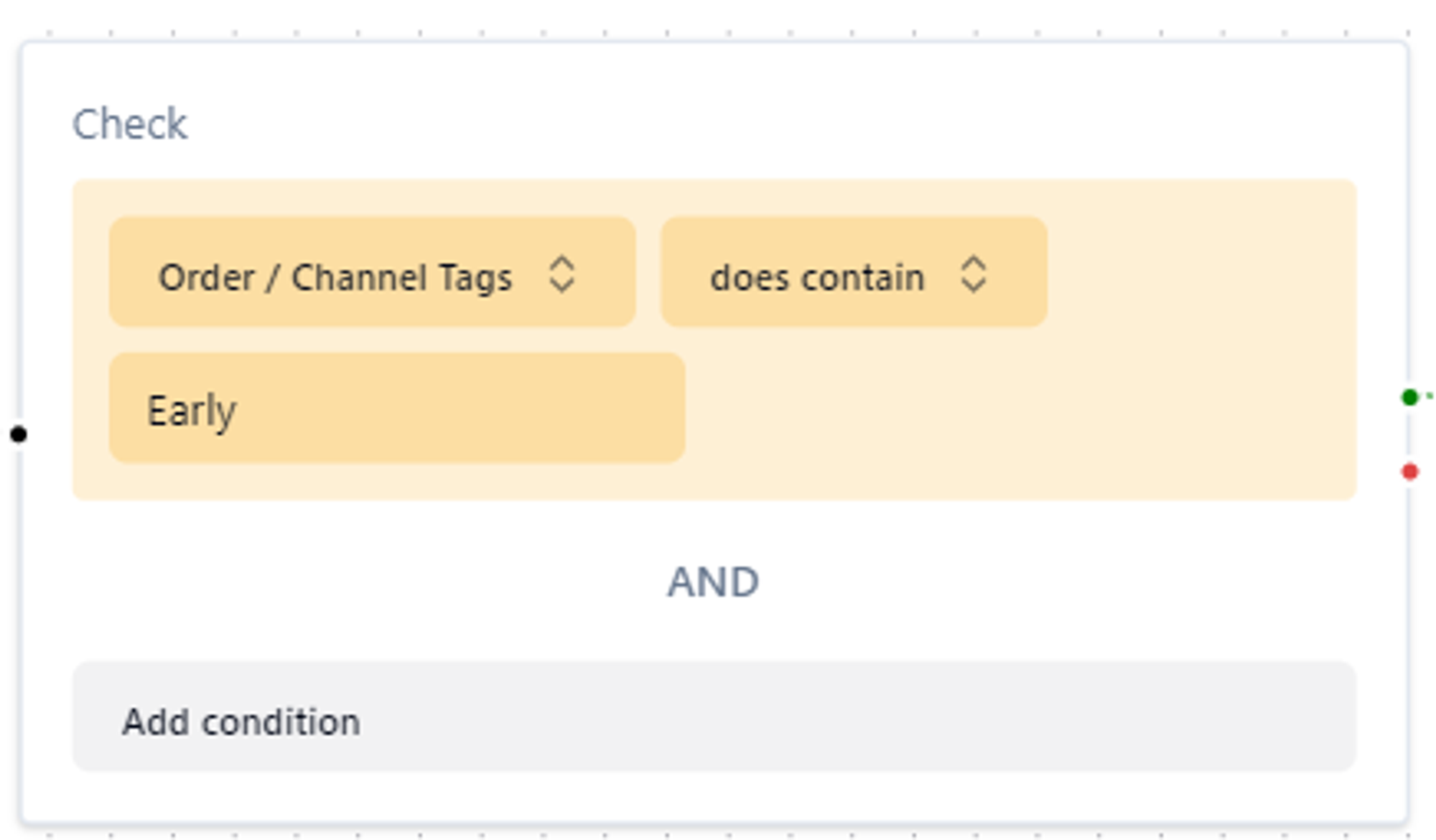
 1. You need to select a **variable**, then a **condition** and then a **value.**
 1. You can continue to add checks and toggle between AND and OR.
2. When you are happy with the conditions you will click **add action**
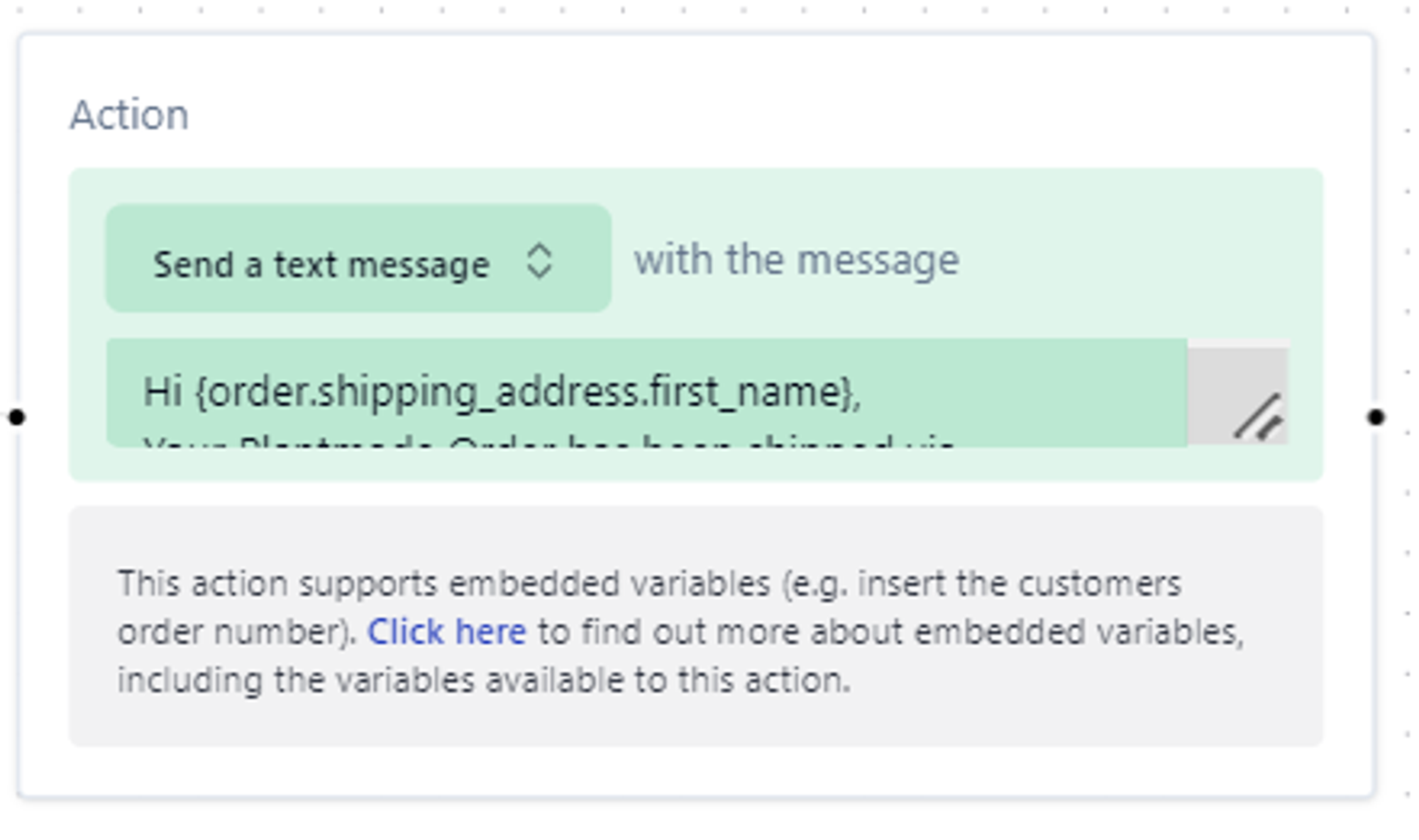
3. Then select the action you want, if your conditions are met.
1. You can continue to add checks and toggle between AND and OR.
2. When you are happy with the conditions you will click **add action**
3. Then select the action you want, if your conditions are met.
 1. Now just name your workflow on the top right
2. Turn on the workflow with the toggle on the top right.
3. Finally **save workflow** top right.
1. Now just name your workflow on the top right
2. Turn on the workflow with the toggle on the top right.
3. Finally **save workflow** top right.