> ## Documentation Index
> Fetch the complete documentation index at: https://docs.getpimento.com/llms.txt
> Use this file to discover all available pages before exploring further.
# Warehouse Users
Why do user roles matter?
Implementing distinct user roles in a warehouse system is essential for:
* Controlling access to sensitive information
* Clearly defining responsibilities
* Improving operational efficiency
* Enhancing security and compliance
* Tracking accountability
Pimento offers three user levels:
1. Operative - Operative users can pick, pack and ship orders, process stock, process returns and other warehouse floor tasks.
2. Supervisor - Can access most platform areas except billing and finance.
3. Manager - All unrestricted access to all areas of the platform, including billing and finance.
**How to Set Up Users**
1. Navigate to the "Users" tab
 2. Click on the “Add User” button in the top right corner
 3. Fill out all required fields (marked with \*)
 4. Click "Create User". The user will now be created
 **How to Change a User's Role**
1. To change a user's role, follow the steps in the "How to Set Up Users section" to recreate the user with the new role
2. Go to the “Users” tab
3. Locate the user. If two roles are assigned, click the "Bin" icon next to the role you wish to remove
**How to Change a User's Role**
1. To change a user's role, follow the steps in the "How to Set Up Users section" to recreate the user with the new role
2. Go to the “Users” tab
3. Locate the user. If two roles are assigned, click the "Bin" icon next to the role you wish to remove
 **How to Disable a User Account**
1. Navigate to the "Users" tab
2. Find the user whose account you want to disable
3. Click the "..." under the Actions column
**How to Disable a User Account**
1. Navigate to the "Users" tab
2. Find the user whose account you want to disable
3. Click the "..." under the Actions column
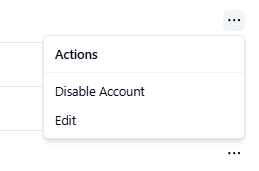 4. Select Disable Account. The user will no longer have access to the platform.
**Additional Information**
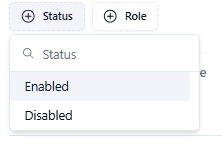
1. Filter users by "Enabled or Disabled" status using the Status filter
4. Select Disable Account. The user will no longer have access to the platform.
**Additional Information**
1. Filter users by "Enabled or Disabled" status using the Status filter
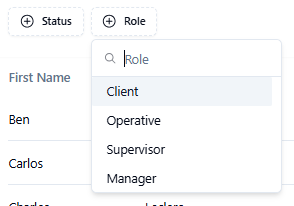
 2. Filter users by their role using the "Role filter"
 3. Use the search bar to locate a user by First Name, Last Name, Phone Number, or Email
 4. Download a CSV of all users by clicking the "Download Icon"
