> ## Documentation Index
> Fetch the complete documentation index at: https://docs.getpimento.com/llms.txt
> Use this file to discover all available pages before exploring further.
# Introduction
Onto the best part, packing the order! Below is the Pimento Dispatch App, this is the page you will see before you scan your tote.
 Once the tote has been scanned, it will bring up the order. It will show the scannable items at the top (the ones with barcodes registered in the inventory page), then it will show ‘confirm these items’ (these are items that do not have barcodes within Pimento and the packer has to check the product vs the dispatch app to ensure it is correct) and ‘confirm these add ons’ (add ons are typically things such as tissue paper, stickers, handwritten notes and insert cards)
 It will also show the packaging the system has selected at the bottom of the page, Pimento already knows the dimensions of the products within the order and what packaging is needed to dispatch the order. Packaging options can be configured in Inventory>Packaging on your 3PL’s side.
 Next step is the weight check, the system already knows what the parcel should weigh including the box, void fill and any add ons. It will then show if the weight check has been confirmed or failed. If it fails it will ask you to retry just to ensure it was inputted correctly.

 It will then show if the weight check has been confirmed or failed. If it fails it will ask you to retry just to ensure it was inputted correctly. If the weight check fails again then it will print out a problematic label and pass it to a supervisor to resolve the issue.
 When the item passes the weight check, you will get a pop up to show the item has been dispatched and the shipping label will print.
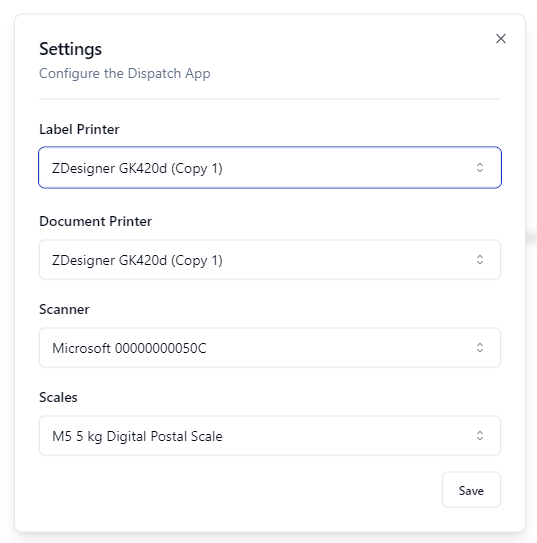
 The settings for the printer should be as below: