> ## Documentation Index
> Fetch the complete documentation index at: https://docs.getpimento.com/llms.txt
> Use this file to discover all available pages before exploring further.
# Zoho
To connect your Zoho account to Pimento, follow the below steps:
1. Navigate to [Settings > Integrations](https://web.tryhutch.co.uk/clients/settings/integrations) within the Pimento dashboard, and press **Connect** within the Zoho section.
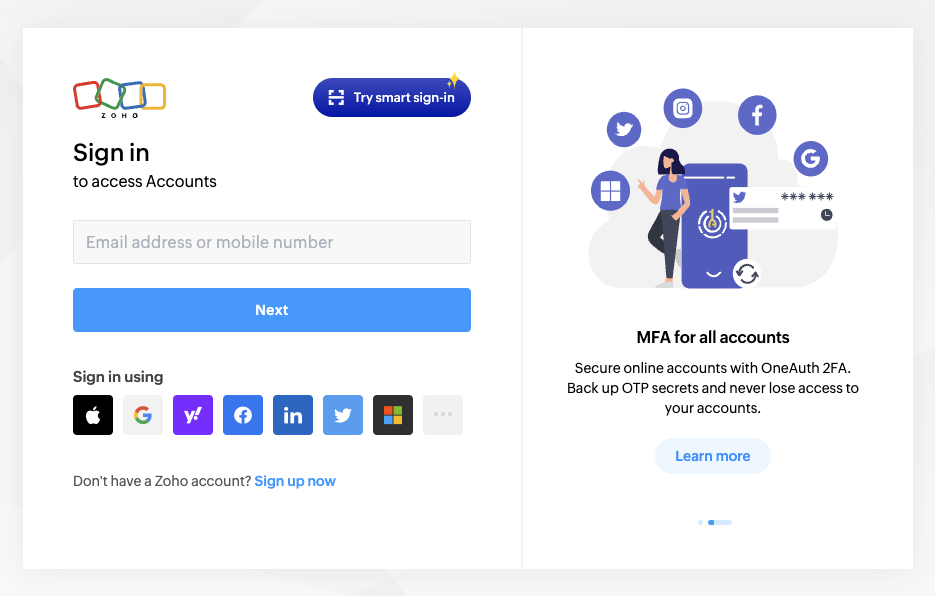
 2. You will be redirected to Zoho where you need to login to your account
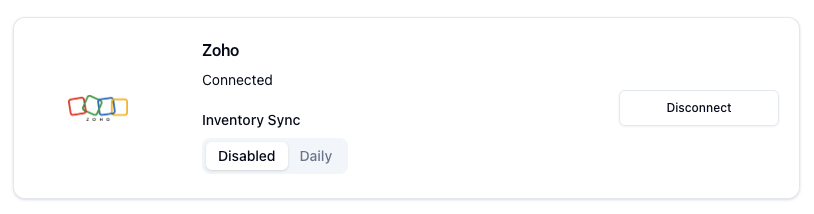
 3. You will be redirected back to the Pimento dashboard and your Zoho store is now connected!