> ## Documentation Index
> Fetch the complete documentation index at: https://docs.getpimento.com/llms.txt
> Use this file to discover all available pages before exploring further.
# WooCommerce
To connect your WooCommerce account to Pimento, follow the below steps:
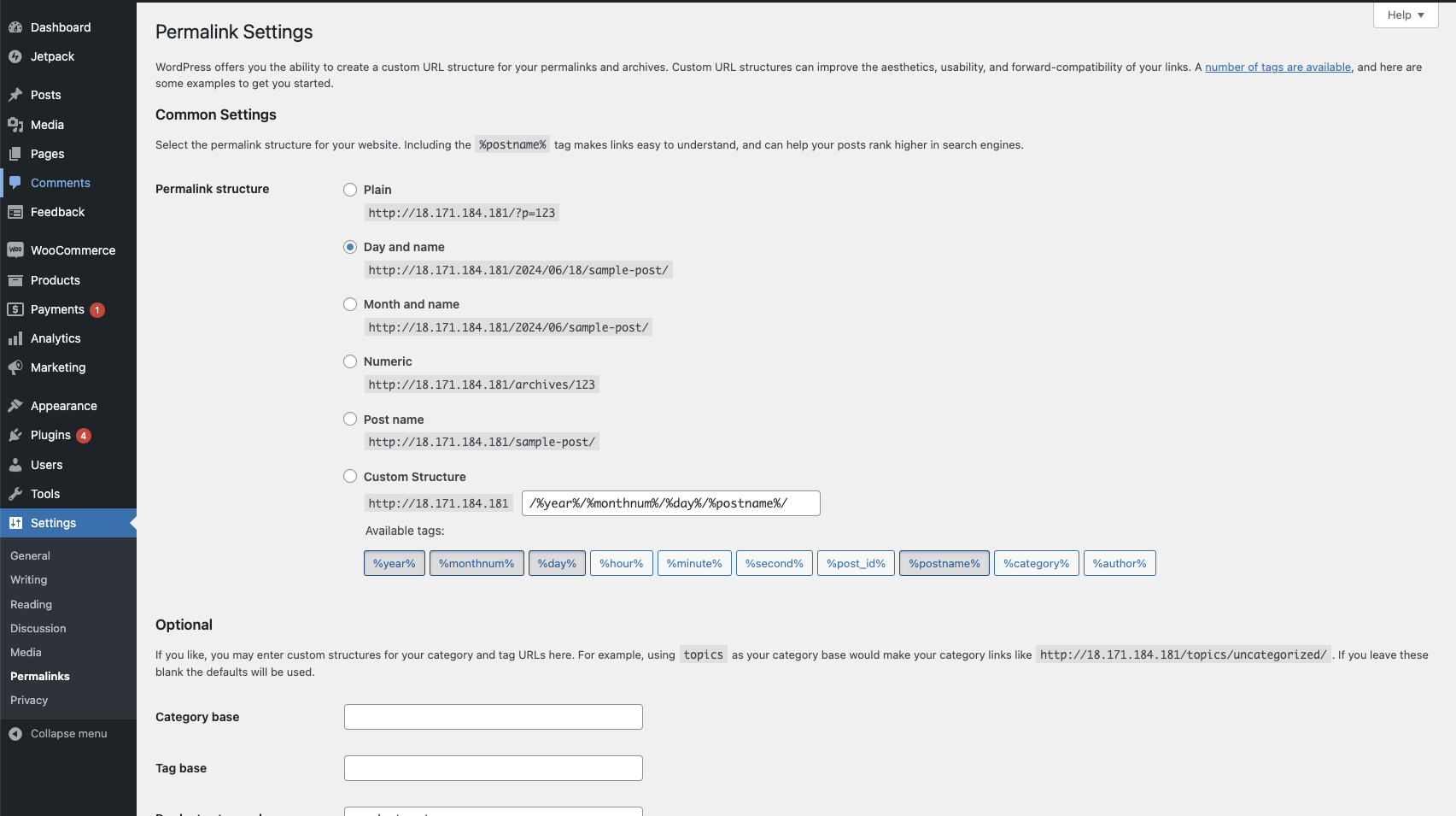
1. Navigate to **Settings** > **Permalinks** within the Wordpress sidebare. Ensure the Permalink structure is setup to **Day and name**.
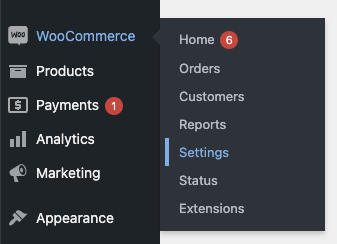
 2. Within the **WooCommerce** tab of the sidebar, click on **Settings**
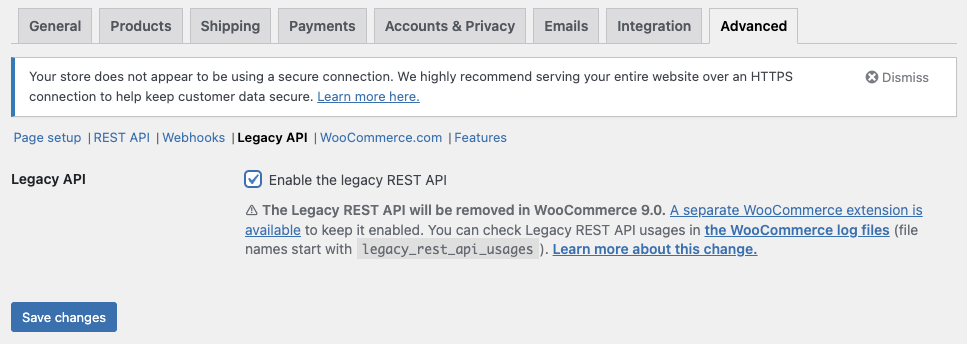
 3. Within **Advanced** > **Legacy API**, ensure the Legacy API is enabled and saved.
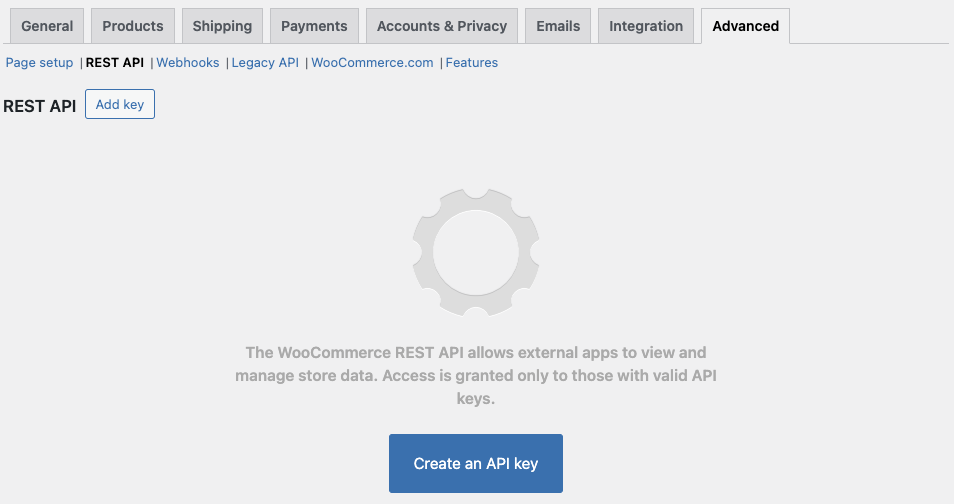
 4. Next, go to **Advanced** > **REST API** and press **Create an API Key**
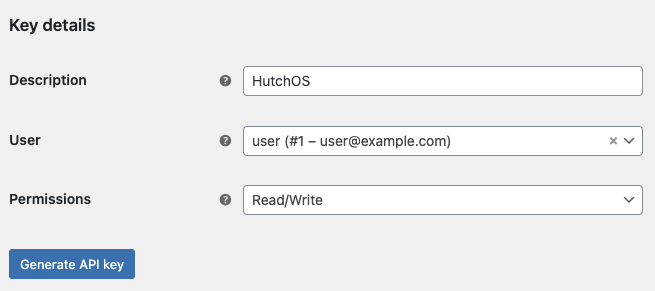
 5. Enter `Pimento` as the description and set permissions to `Read/Write`. Then press **Generate API key**.
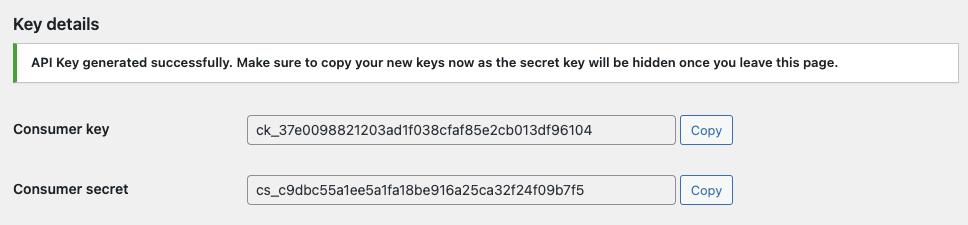
 6. You will be provided with a Consumer Key and Consumer Secret. These will be needed in a later step.
 6. Once you have the credentials, navigate to [Settings > Integrations](https://web.tryhutch.co.uk/clients/settings/integrations) within the Pimento dashboard, and press **Connect** within the WooCommerce section.
 7. Enter the Store URL (e.g. `https://www.mystore.com`) along with the API Key and Secret generated in the earlier step.
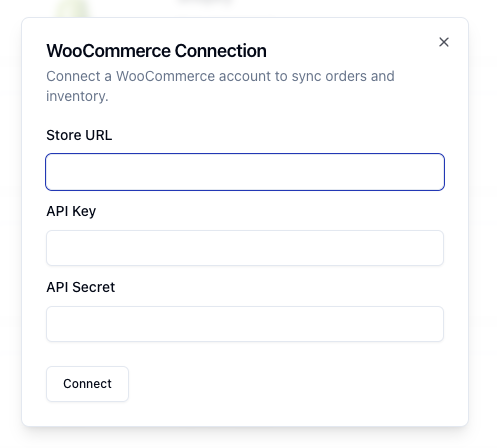 8. Press **Connect** and your WooCommerce store will now be connected to Pimento.