> ## Documentation Index
> Fetch the complete documentation index at: https://docs.getpimento.com/llms.txt
> Use this file to discover all available pages before exploring further.
# Swap Commerce
To connect your Swap Commerce account to Pimento, follow the below steps:
## 1. Open Swap Commerce Integration
Navigate to the [Swap Commerce integration settings](https://app.getpimento.com/clients/settings/integrations/swap-commerce/edit/new) within the Pimento dashboard.
 ## 2. Copy Webhook URL
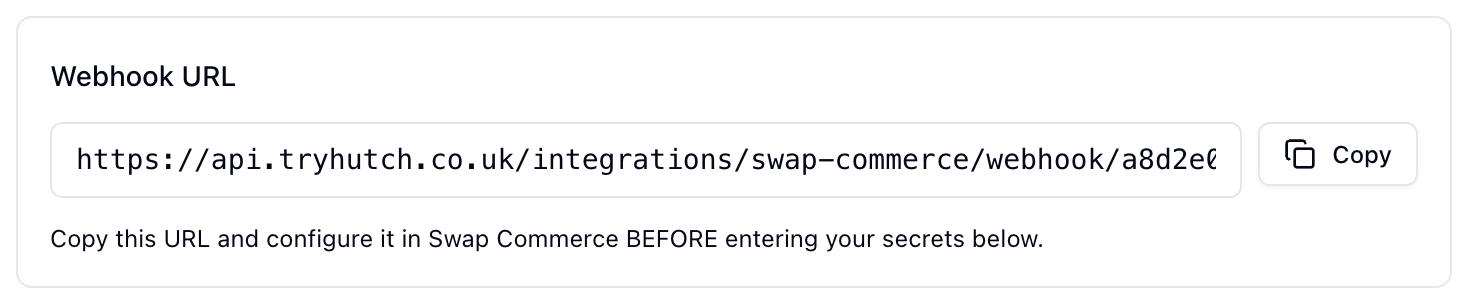
Copy the webhook URL **exactly** as shown on the settings page. Copying this incorrectly will result in no orders being downloaded.
## 2. Copy Webhook URL
Copy the webhook URL **exactly** as shown on the settings page. Copying this incorrectly will result in no orders being downloaded.
 ## 3. Configure Webhook in Swap
1. Navigate to **Integrations** in your Swap dashboard
2. Click **New webhook**
3. Give it a name (e.g., "Hutch Returns")
4. Paste the webhook URL from above
5. Select the **Return** event
You will need to create two separate webhooks: one for **create** events and one for **update** events.
6. After creating the webhook, copy and save the **Webhook Secret** shown
The Webhook Secret won't be shown again, so make sure to save it securely.
## 4. Generate Returns QC API Key
1. Go to **Returns** → **Quality Control Settings** in Swap
2. Enable **Quality Control**
3. Click **Generate API Key**
4. Copy the token from the popup
The API key won't be shown again, so make sure to save it securely.
## 5. Configure Swap Settings
To ensure returns sync correctly between Pimento and Swap, you need to configure the following settings in Swap:
### Automatic Updates
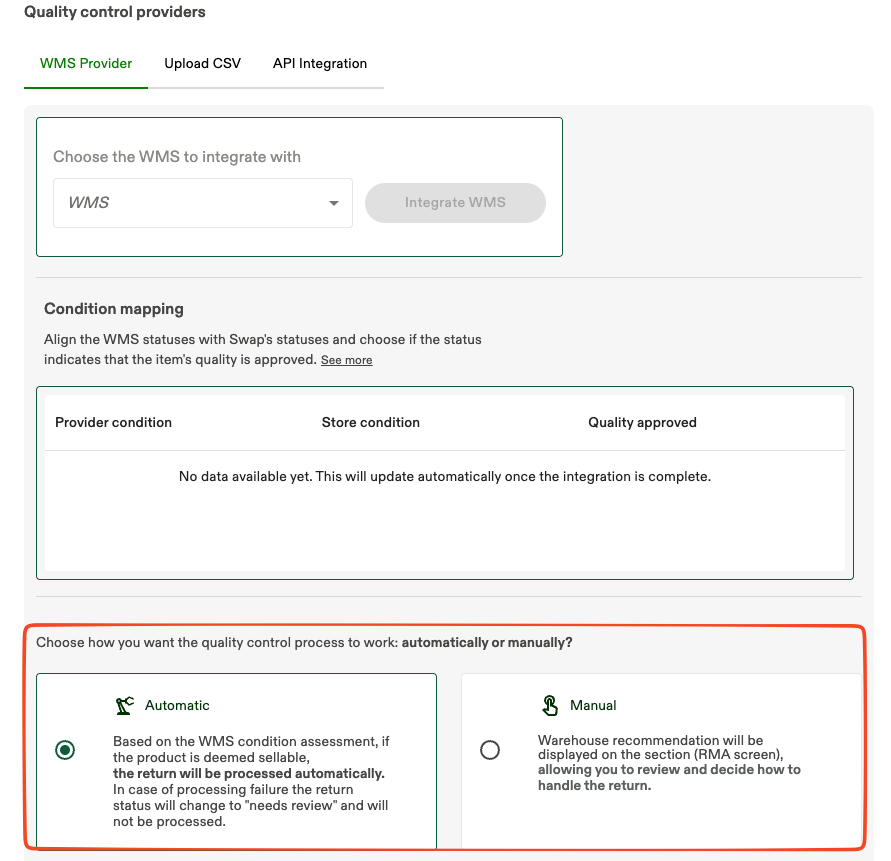
Set updates to **Automatic** to ensure completed returns show as complete within Swap.
## 3. Configure Webhook in Swap
1. Navigate to **Integrations** in your Swap dashboard
2. Click **New webhook**
3. Give it a name (e.g., "Hutch Returns")
4. Paste the webhook URL from above
5. Select the **Return** event
You will need to create two separate webhooks: one for **create** events and one for **update** events.
6. After creating the webhook, copy and save the **Webhook Secret** shown
The Webhook Secret won't be shown again, so make sure to save it securely.
## 4. Generate Returns QC API Key
1. Go to **Returns** → **Quality Control Settings** in Swap
2. Enable **Quality Control**
3. Click **Generate API Key**
4. Copy the token from the popup
The API key won't be shown again, so make sure to save it securely.
## 5. Configure Swap Settings
To ensure returns sync correctly between Pimento and Swap, you need to configure the following settings in Swap:
### Automatic Updates
Set updates to **Automatic** to ensure completed returns show as complete within Swap.
 ### Sellable/Unsellable Actions
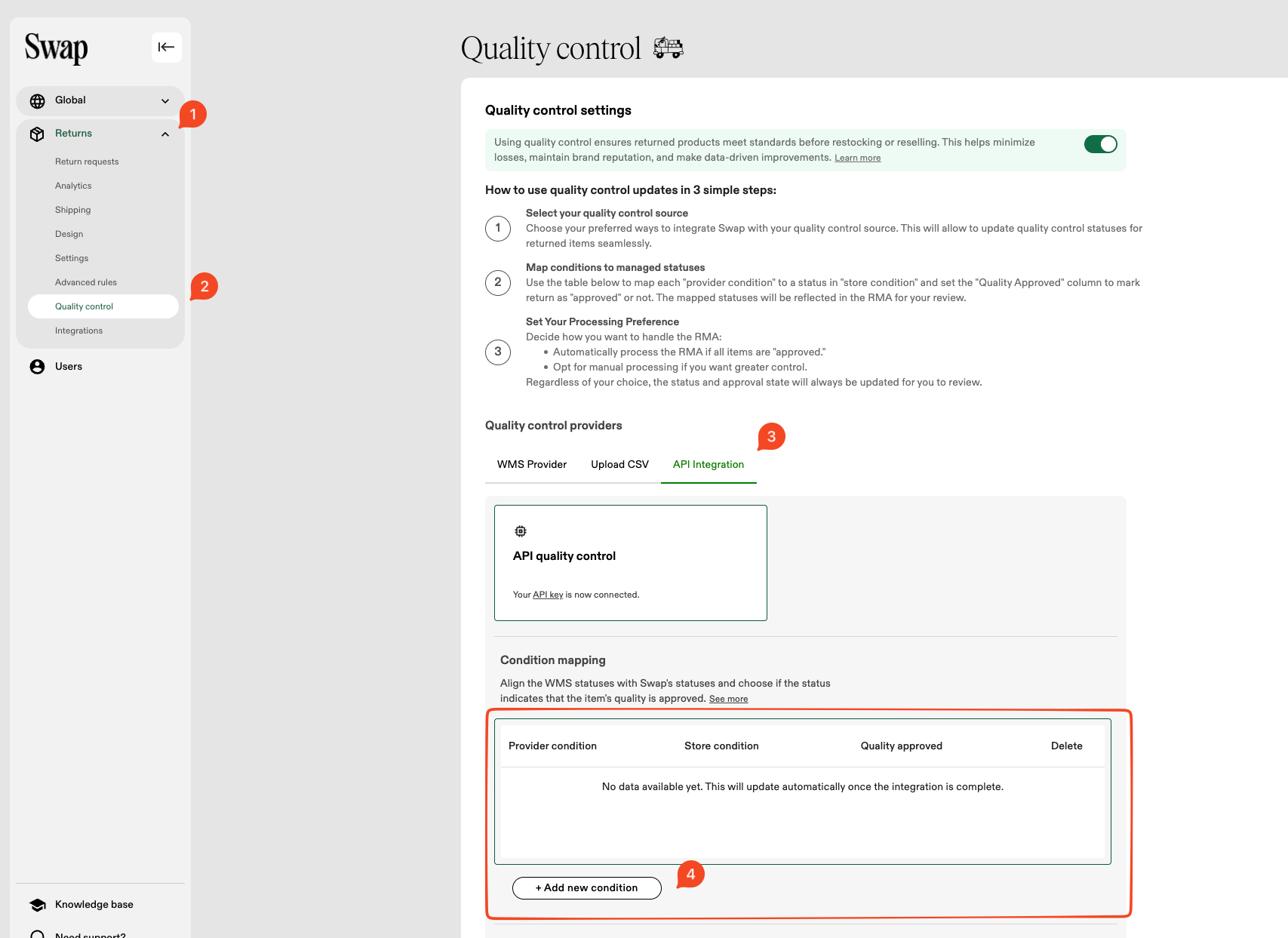
Configure sellable and unsellable actions to ensure items correctly get passed to Swap. You will need to create one action for each:
**Sellable Action:**
* **Provider condition** → `sellable` (lowercase)
* **Store condition** → `Sellable`
* **Quality approved** → `Yes`
**Unsellable Action:**
* **Provider condition** → `unsellable` (lowercase)
* **Store condition** → `Damaged`
* **Quality approved** → `No`
### Sellable/Unsellable Actions
Configure sellable and unsellable actions to ensure items correctly get passed to Swap. You will need to create one action for each:
**Sellable Action:**
* **Provider condition** → `sellable` (lowercase)
* **Store condition** → `Sellable`
* **Quality approved** → `Yes`
**Unsellable Action:**
* **Provider condition** → `unsellable` (lowercase)
* **Store condition** → `Damaged`
* **Quality approved** → `No`
 ## 6. Complete Integration
1. Enter the **Webhook Secret** from Step 3
2. Enter the **QC API Key** from Step 4
3. Click **Connect Integration**
## 6. Complete Integration
1. Enter the **Webhook Secret** from Step 3
2. Enter the **QC API Key** from Step 4
3. Click **Connect Integration**
 Your Swap Commerce account is now connected to Pimento, and returns will automatically sync between the platforms.
Make sure you have completed Step 5 to configure the required Swap settings (Automatic Updates and Sellable/Unsellable Actions) to ensure returns sync correctly.
Your Swap Commerce account is now connected to Pimento, and returns will automatically sync between the platforms.
Make sure you have completed Step 5 to configure the required Swap settings (Automatic Updates and Sellable/Unsellable Actions) to ensure returns sync correctly.