> ## Documentation Index
> Fetch the complete documentation index at: https://docs.getpimento.com/llms.txt
> Use this file to discover all available pages before exploring further.
# Subbly
To connect your Subbly account to Pimento, follow the below steps:
1. Navigate to the **Admin** section of the Subbly dashboard. Select **Storefont API Keys** from the sidebar.
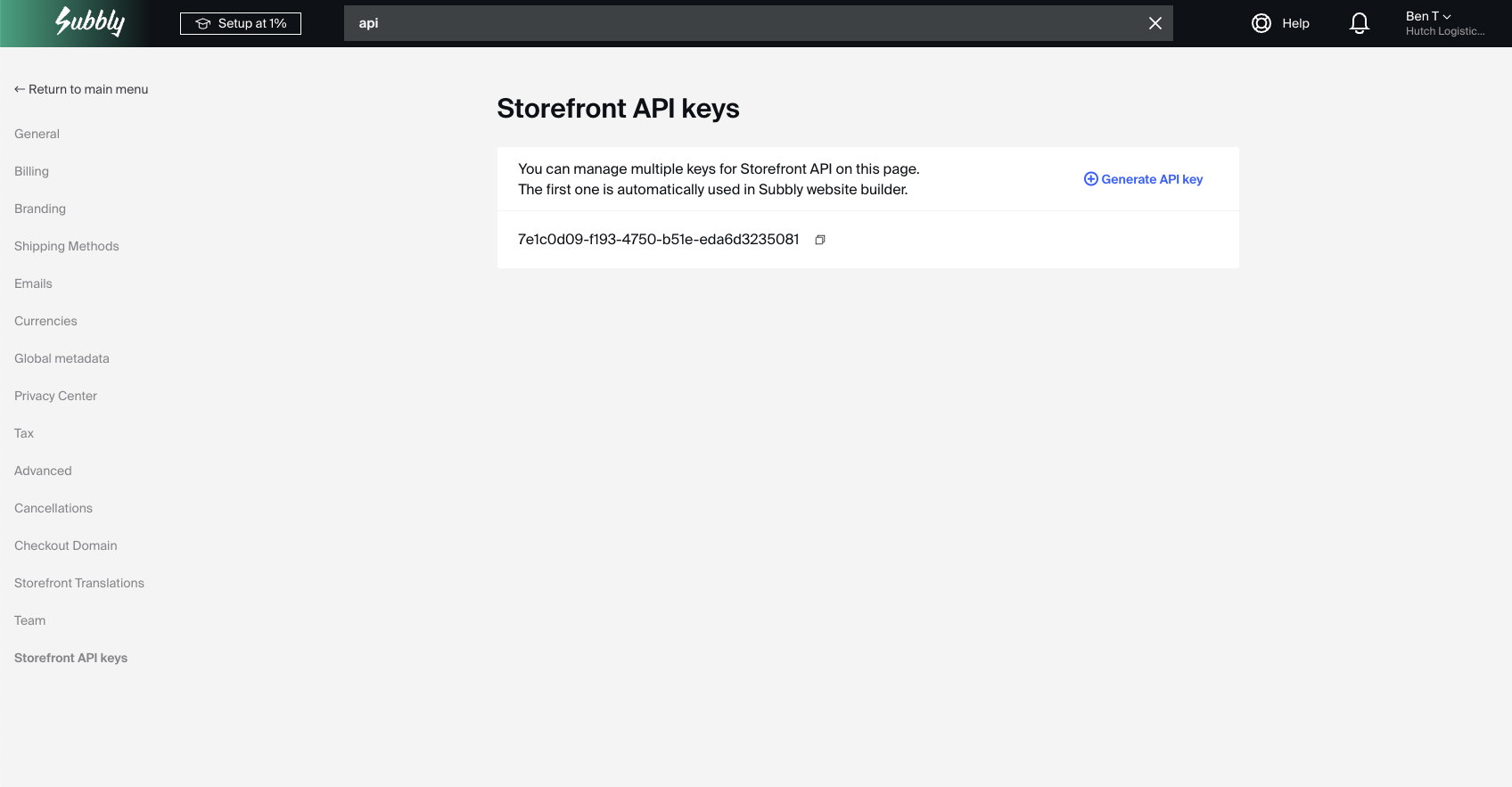 2. Press **Generate API Key** and copy the new API key which will be generated
3. Once you have these credentials, navigate to [Settings > Integrations](https://web.tryhutch.co.uk/clients/settings/integrations) within the Pimento dashboard, and press **Connect** within the Subbly section.
2. Press **Generate API Key** and copy the new API key which will be generated
3. Once you have these credentials, navigate to [Settings > Integrations](https://web.tryhutch.co.uk/clients/settings/integrations) within the Pimento dashboard, and press **Connect** within the Subbly section.
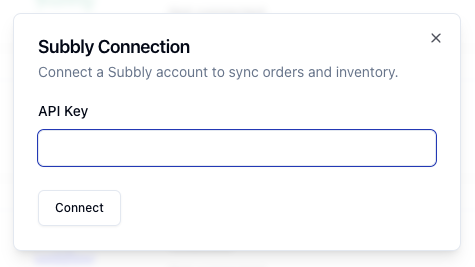
 4. Enter your API Key in the popup and then press **Connect**. Your Subbly store is now connected to Pimento.