> ## Documentation Index
> Fetch the complete documentation index at: https://docs.getpimento.com/llms.txt
> Use this file to discover all available pages before exploring further.
# ShopWired
To connect your ShopWired account to Pimento, follow the below steps:
1. Navigate to the **Your Account** section of the ShopWired dashboard. Scroll to the bottom of the page to the **API Access** section.
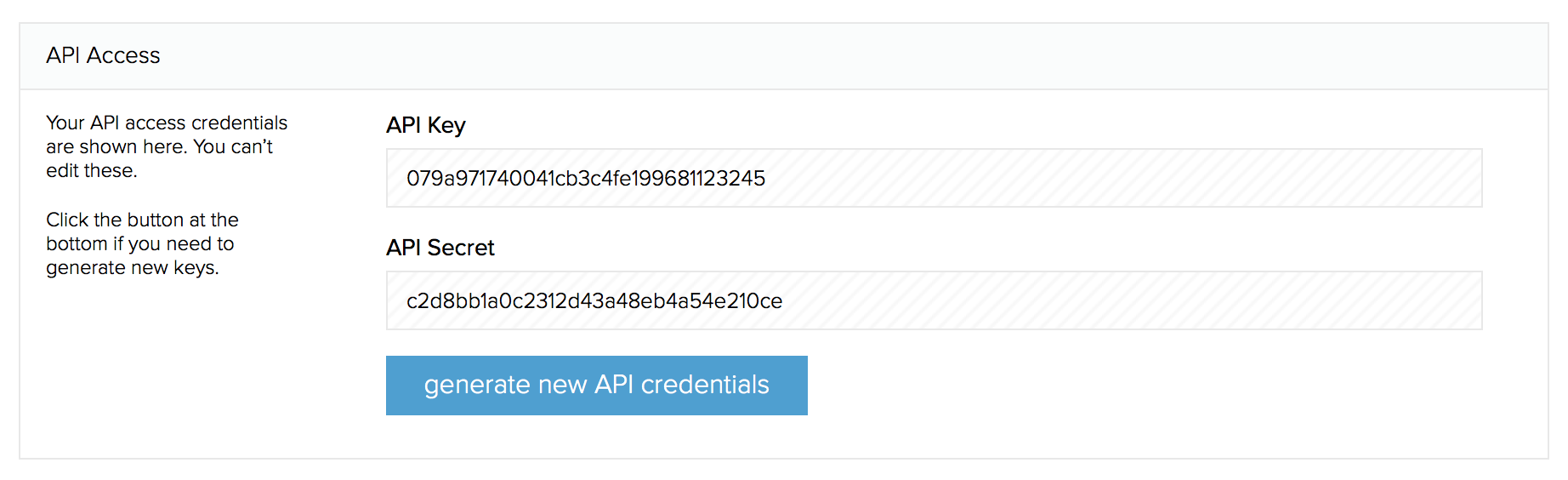 3. Once you have these credentials, navigate to [Settings > Integrations](https://web.tryhutch.co.uk/clients/settings/integrations) within the Pimento dashboard, and press **Connect** within the ShopWired section.
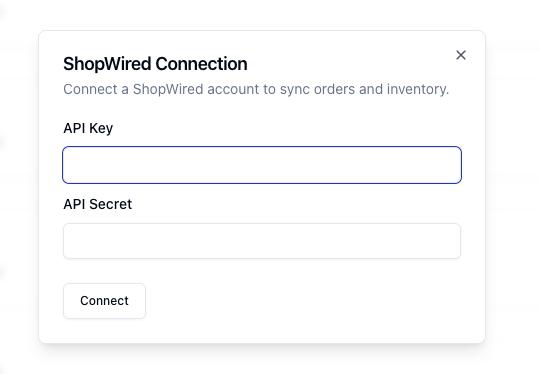 4. Once you enter these credentials and then press **Connect**. Your ShopWired store is now connected to Pimento.