> ## Documentation Index
> Fetch the complete documentation index at: https://docs.getpimento.com/llms.txt
> Use this file to discover all available pages before exploring further.
# Shopify
To connect your Shopify account to Pimento, follow the below steps:
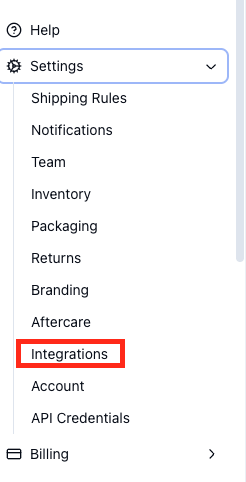
1. Navigate to **Integrations** this can be found by going to Settings > Integrations on the Pimento dashboard.
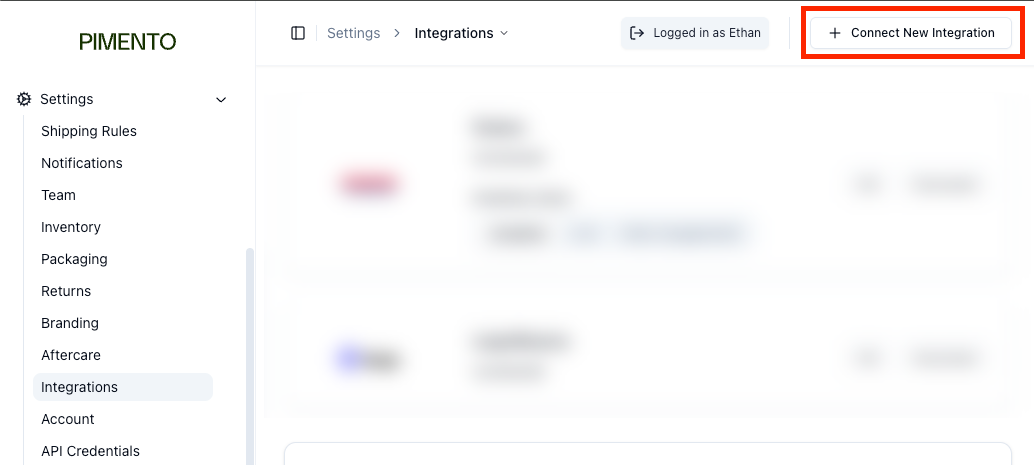
 2. Next go to **Connect New Integration**
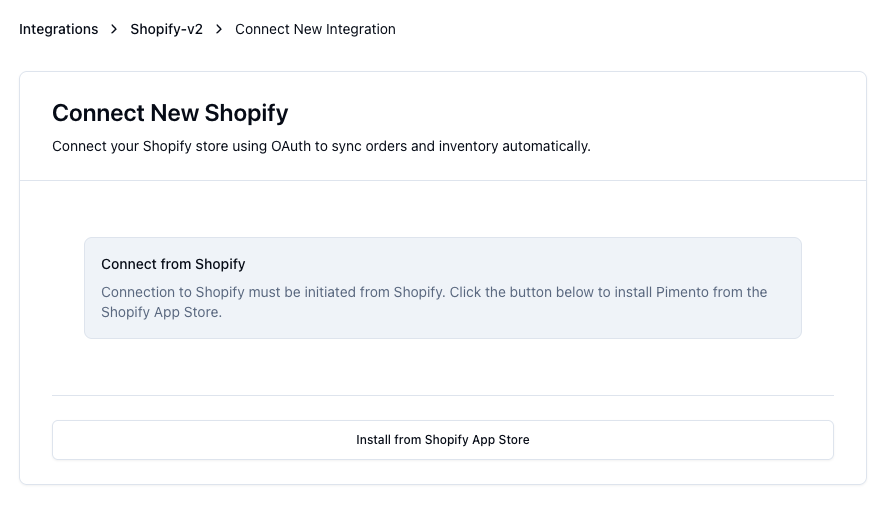
 3. From there you will be shown a pop-up asking to install from the Shopify App store, simply hit **Connect** and you will be redirected. If you see a slightly different screen please refer to 3.1 below
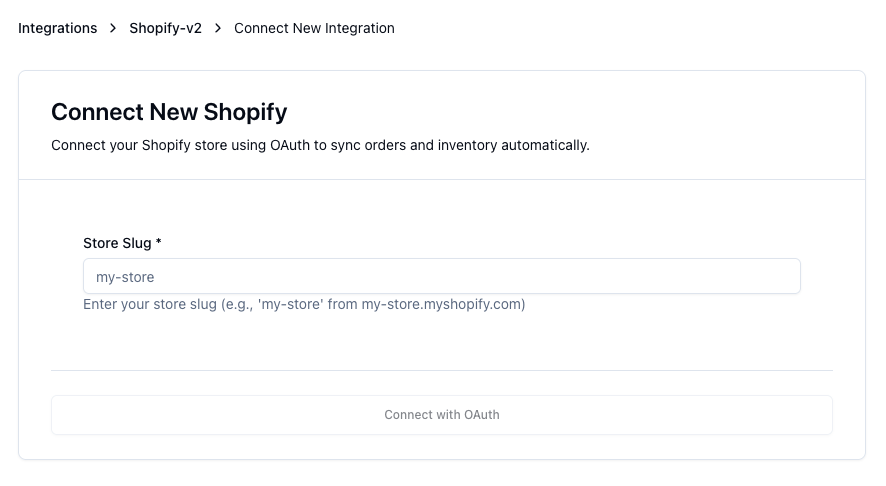
 3.1 If you see a slightly different screen you will be asked to enter your slug, this can be found when you go to `admin.shopify.com` within the domain bar, e.g from `https://admin.shopify.com/store/ethan-testing-store` you would need to enter `ethan-testing-store`
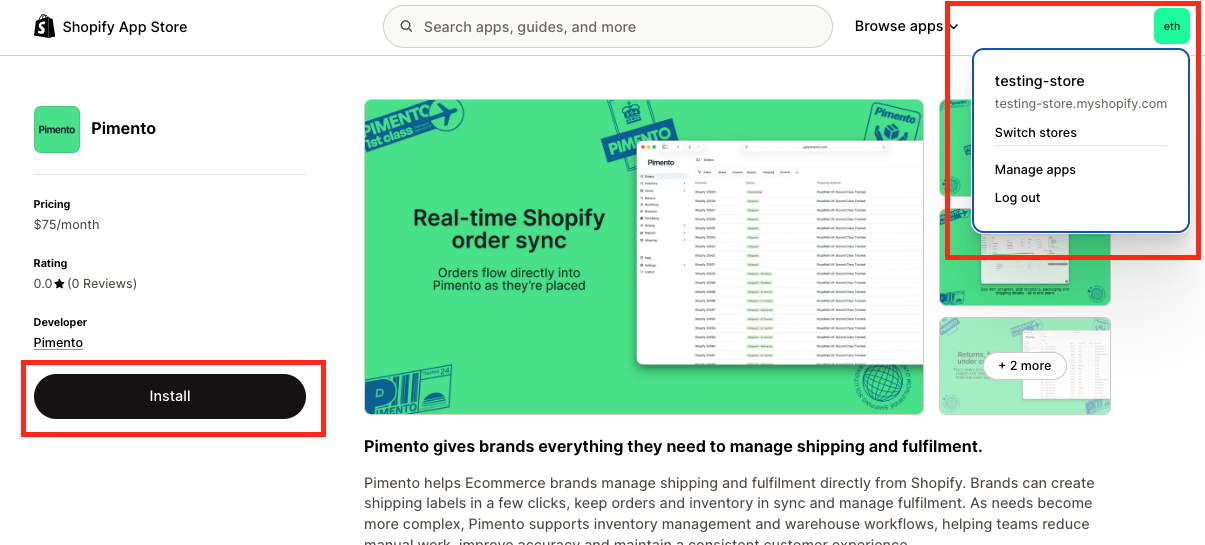
 4. You will now be shown the Shopify App Store, click Install, you will need to ensure you are logged into the correct Shopify store you wish to link.
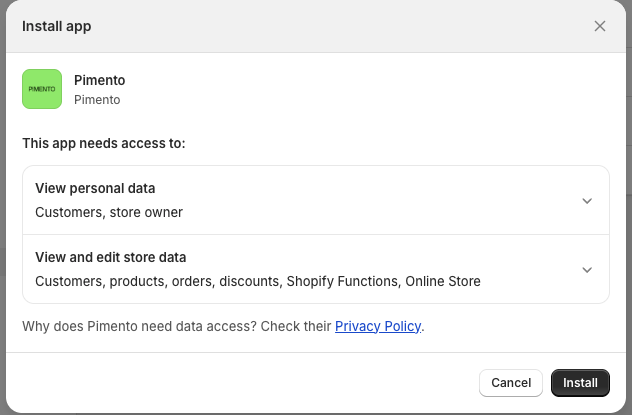
 4. When re-directed to Shopify you will be prompted to accept the Pimento App Shopify permissions, these are required to download and send fulfilment updates
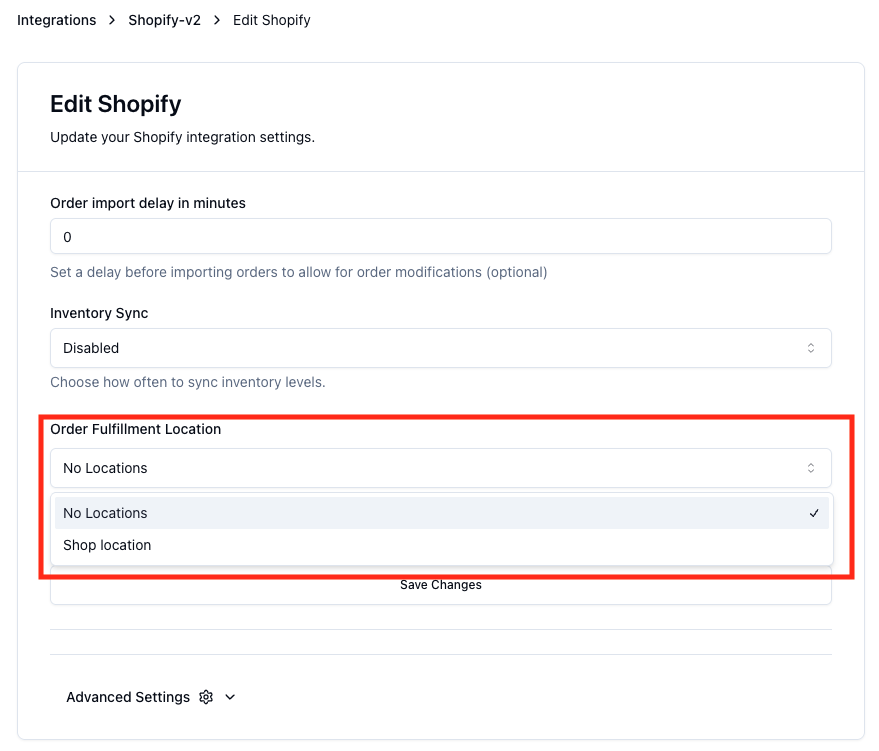
 5. Once accepted you will be redirected back to Pimento with your settings page now available, you will **NEED** to set a fulfilment location so that orders can then begin to download