> ## Documentation Index
> Fetch the complete documentation index at: https://docs.getpimento.com/llms.txt
> Use this file to discover all available pages before exploring further.
# Magento
To connect your Magento 2 store to Pimento, follow the below steps:
1. Within your Magento store, go to the navigation bar on the left hand side and press **System**
2. Within the popup, select **Integrations** (within the Extensions category)
3. Add the integration name as Pimento, and enter your user password within the **Current User Identity Verification** section.
 4. On the sidebar is two subtabs, Integration Info and API. Click on **API**.
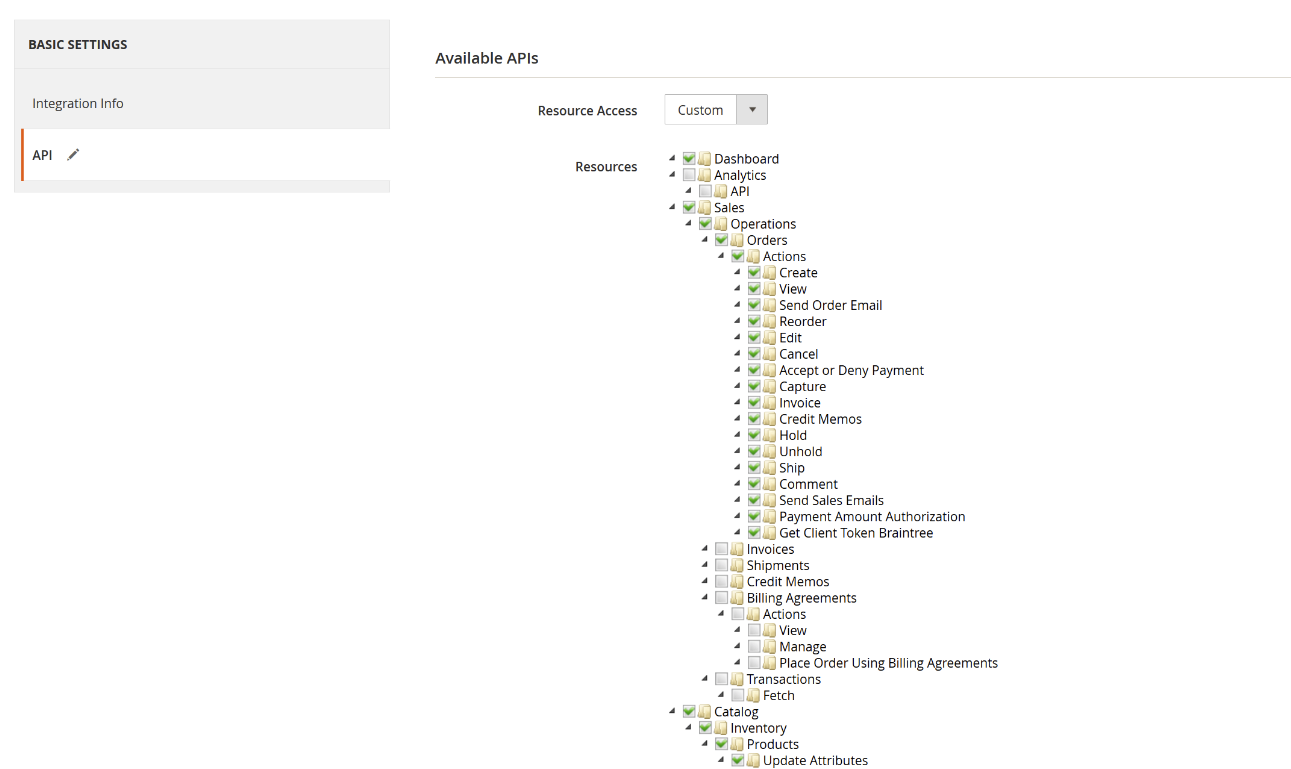 5. Select **All** within Resource Access, to give Pimento all the necessary permissions
6. Save the integration and then activate it.
7. Navigate to [Settings > Integrations](https://web.tryhutch.co.uk/clients/settings/integrations) within the Pimento dashboard, and press **Connect** within the Magento section.
5. Select **All** within Resource Access, to give Pimento all the necessary permissions
6. Save the integration and then activate it.
7. Navigate to [Settings > Integrations](https://web.tryhutch.co.uk/clients/settings/integrations) within the Pimento dashboard, and press **Connect** within the Magento section.
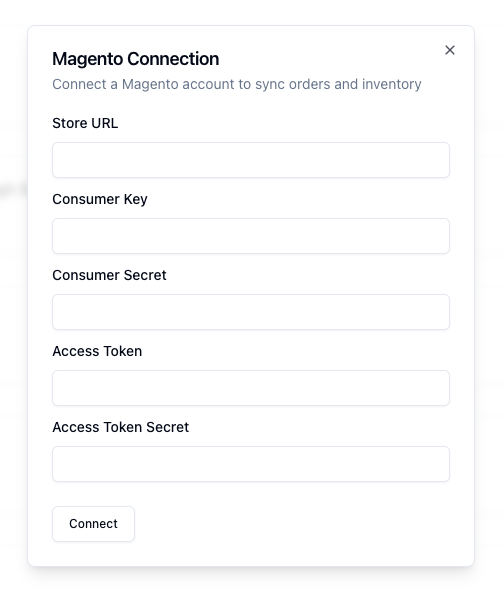 7. Enter the Store URL (e.g. [www.mystore.com](http://www.mystore.com)), along with the API keys which will be visible in the Magento dashboard under **Integration Details**
8. Press connect and your Magento 2 store will be connected to Pimento
7. Enter the Store URL (e.g. [www.mystore.com](http://www.mystore.com)), along with the API keys which will be visible in the Magento dashboard under **Integration Details**
8. Press connect and your Magento 2 store will be connected to Pimento