> ## Documentation Index
> Fetch the complete documentation index at: https://docs.getpimento.com/llms.txt
> Use this file to discover all available pages before exploring further.
# Swap
### Connecting Swap
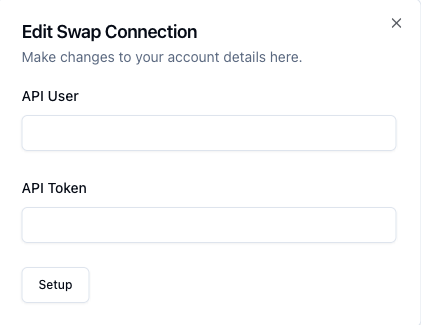
In order to connect your Swap account to Pimento, we require the following information:
* API User
* API Token
Note: These will both be provided by your Swap account manager
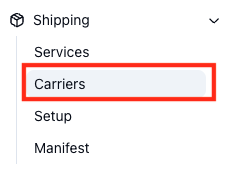
To connect Swap you will need to head to [Shipping > Carriers](https://app.getpimento.com/clients/shipping/carriers) located on the left hand side of the navigation bar:
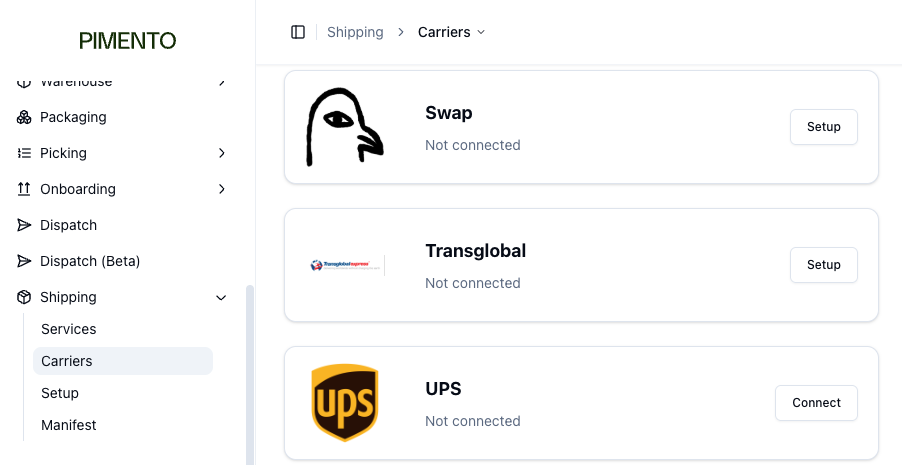
 Then find Swap with the carrier list
 Enter the details you have been provided
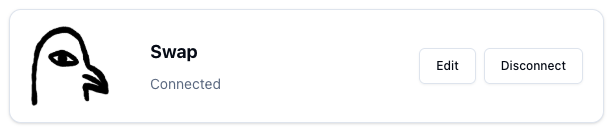
 Once done hit save and if everything is connected you will see the connected screen:
 ### Supported Services
Pimento Supports the following Swap services:
| Service Name |
| ----------------------------------------- |
| Swap FedEx International Priority DDP |
| Swap FedEx International Connect Plus DDP |
### Supported Services
Pimento Supports the following Swap services:
| Service Name |
| ----------------------------------------- |
| Swap FedEx International Priority DDP |
| Swap FedEx International Connect Plus DDP |